
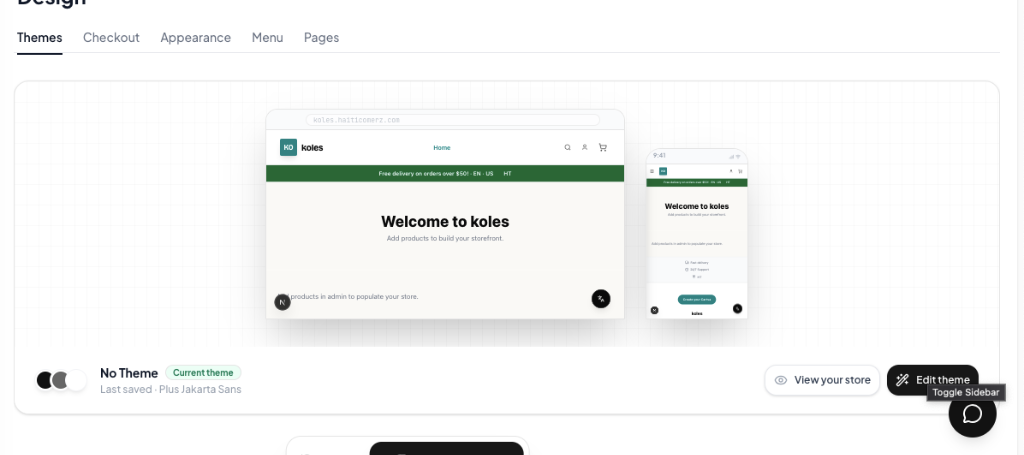

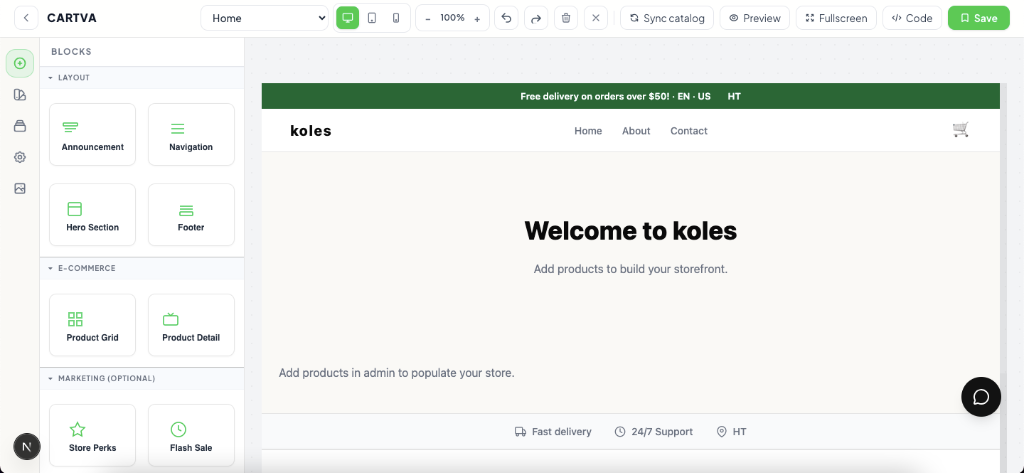
What is a storefront theme?
Storefront themes are pre-designed layouts that control how your Cartva store looks and feels — typography, spacing, color schemes, and the arrangement of sections on your pages. A theme gives your store a cohesive visual identity without requiring custom web development.
Themes define the structure of your homepage, product listings, and content pages. You select a starting point, then customize sections to reflect your brand.
What themes include
- Layout templates for home, collection, and product pages
- Section types such as hero banners, featured products, testimonials, and text blocks
- Style settings for colors, fonts, and button styles
- Responsive behavior so pages render correctly on phones and desktops
How it works on Cartva
Theme management lives in your dashboard under the online store settings.
Selection and customization
- Open the theme gallery — Browse available themes and preview how each handles product grids and hero areas.
- Apply a theme — Confirm your choice. Cartva loads the theme's default sections onto your homepage.
- Edit in the visual editor — Click sections to change images, headlines, and product collections. Reorder sections by dragging.
- Publish — Save changes to push them to your live storefront.
Pages and sections
Beyond the homepage, you can create additional pages (About, FAQ, Contact) using the same section library. Each page inherits your theme's global styles while allowing page-specific content.
Preview before publish
The editor shows a live preview so you can verify layout on desktop and mobile views before customers see updates.
Who it's for
Themes suit any Cartva merchant who wants a polished storefront without hiring a designer or developer.
Good fit:
- New sellers who need a professional look on day one
- Brands refreshing their visual identity seasonally
- Merchants who sell visually driven products (fashion, gifts, home goods)
- Anyone who prefers point-and-click editing over code
Considerations:
- If you need a fully bespoke web experience with custom interactions, a theme provides a strong starting point but has defined layout patterns
- Complex B2B catalogs with heavy filtering may rely more on product organization than theme styling
What you control vs what Cartva handles
| You control | Cartva handles |
|---|---|
| Theme selection and switching | Theme framework and section components |
| Images, copy, and section order | Responsive breakpoints and base CSS |
| Brand colors and fonts (within theme options) | Theme updates and compatibility fixes |
| Which products appear in featured sections | Performance optimization for theme assets |
| Page creation and navigation links | SSL and delivery of themed pages |
Your creative choices — photography, messaging, product curation — shape how customers perceive your brand. Cartva maintains the underlying theme system so layouts remain stable across devices.
Pricing model
Themes are included with your Cartva subscription. There is no separate charge per theme or per customization.
Your plan may affect access to certain premium features (such as advanced integrations), but basic theme selection and visual editing are part of standard storefront functionality. Check your plan in Settings if you are unsure about feature availability.